Showing posts with label scenarios. Show all posts

Monday, May 12, 2014

UIEtips: Scenarios and Journey Maps Help Designers Become Storytellers

via UIE Brain Sparks http://ift.tt/1hxOHFp

“The medium of the designer is behavior.” - Robert Fabricant
As designers, this is what we do. We observe our user behaving in a way that we think we can improve. And then we set out to improve it.
Maybe they aren’t quickly finding the information they’re seeking? Or they can’t fill out the form without receiving error messages? Or we can imagine a more delightful way to help them with an important task?
In that moment, we see the user’s behavior we want to change. We change our design and look to see if that behavior changes as a result.
We don’t directly manipulate the user’s behavior. It’s indirect magic that happens through the designs we create.
Yet, with practice, we become good at it. We can learn how changing pixels, text, images, and controls can change how the user interacts with the design.

Getting the Team Focused on the Same Behaviors

Knowing how to change the users’ behaviors is one thing. Knowing which behaviors to change is another.
There are often many approaches to improving a design. Everyone can think they are working towards a better overall experience, but if each team member chooses a different approach, the design becomes confusing and complex.
When we’re working on a team, getting the entire team to work together from the same approach becomes job one. Smaller teams (such as those with six or less folks) have always had an easier time of this than larger ones. This is because it’s more likely the smaller teams are checking in and talking to each other.
Fortunately, there’s help for larger teams. It comes in a technique that is as old as humanity - storytelling.

Storytelling at the Core of Design Communication

We’ve all experienced that family member who tells the same story at every family get-together. Their story never changes and you could probably recite it verbatim, as if it had happened to you.
That’s the beauty of great storytelling. It brings the listener into the story, helping them live through the described experiences.
This is what makes storytelling ideal for communicating the behaviors we want to design for. We come up with a compelling story for our design and repeat it to help everyone on the team know it as well as we do. That story becomes the guiding force behind the individual design decisions. And stories are more fun, and therefore more effective, than a long, technical design specification.
With this approach, the designer shifts from being the one who makes every design decision, to a type of narrator, that paints the scene and characters for those decisions. The individual members of the team then craft/mold the design to fit the story. Fitting the design to a story brings the team’s discourse to a higher level, giving more power to build great experiences.
The user experience toolbox already provides us with some techniques that make storytelling easy.

Scenarios Provide the Story’s Action

Every screen, dialog box, and form option takes place inside the user’s context. We can design whatthe user does when they interact with those elements. But, that doesn’t explain why they are interacting at that moment.
Scenarios give us the motivation behind the users’ interactions. Conventionally, we’ve used scenarios to help identify how features should work. By returning to the scenario frequently throughout the design process, we can now use them to reiterate the overall story of the design.
Scenarios are stories about the users’ behaviors. These stories don’t say exactly what the screen should look like or what buttons the user will press. They leave those details for the design.
Instead, scenarios showcase the contours of where the design needs to fit in the users’ life. The scenarios describe the steps that brought the user to the moment of using the design and the activities that follow. They put definition around what a successful interaction looks like.
When the designer plays the role of narrator, they need to constantly resurface the project’s scenarios. Using every opportunity, they need to make the scenarios drive the ongoing design discussion. (Techniques, like the Short-form Creative Brief help make this a habit.)

Scenarios Connect the User Stories

Developers manage their backlog by constructing user stories. These simple statements often take the form of “As a <type of user>, I want to <achieve this goal> so that <some reason>.” By blasting through a list of user stories, the developers can quickly assemble the functionality necessary to operate the design.
User stories are a great development tool. However, they work best if the designer can bring back the scenarios from which they emerged. If the developers understand both the user story and the scenario, they’ll know to pay attention to the other functions that come before and after the point in time that the user story takes place.
For example, a team might have a password reset function on their backlog: “As a customer, I want to reset my password so that I can log in when I’ve forgotten it.” This is a complete user story, but it doesn’t tell us why the user came to the site in the first place.
Matching the user story with a scenario could tell us that the customer was responding to a marketing campaign and, after they’ve reset the password, it should return them to the landing page for the campaign. (Or, even better, not require authentication to see the landing page until the user wants to perform an action that warrants the security.)

Journey Maps Provide the Narrative Flow

Mapping the journey of a user provides another storytelling prop for designers. Journey maps are often simple diagrams that show how a user interacts with the design over time. Teams love them because they clearly express where a design becomes frustrating and where it does a great job of delighting its user.
Like any good map, designers can zoom into the user experience at an appropriate level for the problem at hand, then zoom back out to look at the bigger experience. This gives the designer flexibility to tell the story in a way that makes sense for the team’s current objectives.
Designers can start design discussions by taking a moment and saying, “here’s where we are,” pointing to the place in the map where the interaction will take place. The team can construct what the zoomed in section looks like now and draw out how they think the new behaviors might change it.

Aspirational Journeys Make a Design Vision

Most frequently, we see journey maps representing what the current users’ experience is. It shows the highs and lows as users interact with the design today.
But we’ve been seeing more teams overlaying that experience with an aspirational journey, which shows the journey the team is aiming to create. They imagine the behaviors they want to see from their design revisions and put those thoughts on the map, next to the current journey.
The space on the map between the current users’ experience and the aspirational journey becomes a vision of what the design could be. By sharing both journeys throughout the design process, the designer can help the team better see where they are going. Individual team members can ask, as they face important decisions, if what they are planning will get them closer or farther away from that vision.
As the design is changed, the team can plot its progress on the map, showing how close to the aspiration they’ve gotten so far. As user research tells them more about what their users want and need, they can also add that information to the aspirational journey.
As teams develop a richer sense of design, keeping them on the same page will be the designer’s biggest challenge. Infusing the design culture with a rich sense of storytelling, and using the tools in the UX toolbox to help tell those stories, will reduce that challenge substantially.

Ben Callahan PhotoAbout the Author

Jared M. Spool is the founder of User Interface Engineering. He spends his time working with the research teams at the company and helps clients understand how to solve their design problems. You can follow Jared on Twitter @jmspool.

Monday, January 13, 2014

UIEtips: Explore These 7 Great Podcasts from 2013

via UIE Brain Sparks http://www.uie.com/brainsparks/2013/12/23/uietips-explore-these-7-great-podcasts-from-2013/

December 23rd, 2013
This past year we featured some fantastic podcasts from a variety of UX luminaries. It was difficult to cull the list but we managed to do just that. Here for your listening pleasure are our favorite podcasts from 2013.

Designing Microinteractions

Dan Saffer photoDo you think about the ringer on your phone and the ability to turn it off? Dan Saffer uses this example to kick off his book Microinteractions. Silencing the ringer on your phone is a common feature. If that feature is clunky or hard to find, it interferes with needing to silence it quickly, in a crowded movie theater for example. These tiny interactions that surround the main functionality are integral to rounding out the entire experience.

Lean UX: Escaping Product Requirement Hell

Jeff Gothelf photoAssumptions tend to be the downfall of many research projects. Jeff Gothelf suggests starting with an attitude that you’re testing a hypothesis which leads to a more open discussion. The main thing is, hypotheses, just like design, can change. Being flexible and iterative in your design process encourages an environment of collaboration.

When Responsive Design Meets the Real World

Jason Grigsby photoResponsive web design allows the notion of “one web” to be a reality. Designers are increasingly able to sell to their organization the idea of delivering content to multiple platforms. Putting it into practice is another story. Jason Grigsby, co-founder of Cloud Four, says that it is easier to sell the idea of responsive web design than to do it well.

Prototyping for Mobile Designs

Kelly Goto photoBuilding a prototype is a great way to test your design early on with users. Whether you choose to go for a high-fidelity representation, or go lo-fi with paper, you can learn a lot about the usability of your site. Often, teams are concerned with which technique or tool to use because of the litany that are available. Kelly Goto, founder of Gotomedia, suggests that the importance of the tool lies more with when you use it than why.

Using Scenarios to Design Intuitive Experiences

Kim Goodwin photoScenarios can represent the ideal picture of a user’s experience with a product or service because you can see how and when they’ll interact. However, a scenario is often missing the details of what’s going on at this moment in time and that can be a sticking point. This is where the value of the journey map emerges. Kim Goodwin has years of experience teaching teams how to create and work with personas and scenarios.

Adapting Your Content for Mobile

Karen McGrane photoContent touches all aspects of a design. Having presentation independent content allows for it to adapt to different screens and devices. Karen McGrane suggests that having the specifics of how the content will be structured in place first, allows for the freedom and flexibility to make the right design choices. Karen says that thinking about content first, over how it will appear, helps ensure you’re communicating the right message.

Accessibility as a Design Tool

Derek Featherstone photoAccessibility is important, but somewhere along the way it got an undeserved reputation for being ugly, costly, and driven only by technical-compliance requirements. Making it an integral part of your design early creates something that is beautiful, inexpensive, and user experience-driven. Derek Featherstone of Simply Accessible believes that implementing accessibility into your designs will flat out make for better design.

Tuesday, September 17, 2013

Narrative Workflow Topics: Helping Users Connect the Dots Among Topics

I’m continuing my series of posts addressing why users can’t find information in help and what to do about it. The following reason received a high number of votes:
The answer is an isolated task, but the user needs a more connected beginning-to-end workflow.
This answer has received 66 votes. So far, the highest number of votes any response received is 78. (By the way, if you haven’t taken the survey, you can still do so here at the interactive poll.)
Leah Guren highlighted the problem of interconnected tasks in her talk at the UA Europe conference, noting that many smartphone guides might explain how to look up contacts, and also how to make a call, but not how to look up contacts while you’re on a call.
Help is typically written in a modular fashion. Most help topics focus on a specific task or concept, giving you a lot of detail and step-by-step instruction for completing that particular task.
But the task is often only one part of the solution. A user may need to leverage several tasks in context of each other to solve a problem.

An example of interconnected tasks

For example, at a previous organization, I wrote documentation for a meeting management tool. Secretaries would need to create a meeting, add items to a meeting agenda, send out the previous meeting’s minutes for votes in preparation for the meeting, route non-meeting items to an external voting process, arrange meeting items on an agenda, and so on — all within this web-based tool.
I wrote each task as a standalone help topic in a section called “Managing Meetings.” The model seemed fine if the secretary was already familiar with the application and just had a specific question, like how do I cast a vote for a meeting member who is on vacation? — or something similar.
But new secretaries or secretaries unfamiliar with the tool needed a lot more hand-holding. It didn’t make sense to give them all of these standalone topics. How would they know which order the tasks were to be completed in? Were all the tasks necessary to their role, or were some optional? When should a secretary complete each task?
Not every committee followed the same meeting process either. The tool was designed to support both formal and lite committee processes, with some committees voting and recording minutes, and others just displaying ad hoc agendas.
What was missing in the help file was a workflow or scenario-based topic. So I wrote some narrative workflows. The workflow topics went something like this (each bold-formatted word would be a link to a topic):
Mark is a secretary for the ACME committee. The committee has a meeting coming up next week, so Mark creates a new meeting and adds it to the calendar. Mark gathers agenda items and adds each item to the meeting. Mark also estimates the time for each agenda item and also adds times for guest visitors or other meeting events.
On the day of the meeting, Mark displays the meeting in agenda view on the projector while opening a second monitor to take notes. During the meeting, for each agenda item, Mark routes the item through several workflows depending on the nature of the item and the committee’s discussion. Mark can route an item through the voting workflow, the postponed workflow, or the resolution workflow. After the meeting, Mark closes the meeting and sends the minutes to all members for their review.
When the members finish voting on the minutes, Mark archives the minutes. If any committee members are out of town, Mark can vote on a committee member’s behalf.
See how this topic differs from the normal task-based topics? This is a workflow that tells the story of how the product is used. Most software has similar workflows for the user to follow.
Writing documentation for programmers is somewhat similar. As you reference techniques in an SDK, for example, you might say something like, “Now we leverage the length method to count the characters in the string, and then we use the push method to add it to an array and so on.
Programming builds on concepts and techniques, and it makes sense to link back to these other techniques as you explain how someone might use the techniques in context of each other. Simply having access to a list of methods with little understanding of how you use methods in context of each other requires the user to do the work of figuring out how it all fits together. Workflow topics explain how a person uses the various tasks in a harmonious order for a specific end.
To better understand the importance of workflow topics, consider a couple of analogies — with orchestras and connect-the-dots patterns. A flutist may know how to play the flute, and a drummer knows drumming, and a violinist knows how to play the violin. But do they know how to play in context of each other to create the sound of an orchestra? That’s what a workflow topic does: it teaches users how to move from a single instrument to an orchestra.
Or consider connect-the-dot patterns. It’s easy to make a straight line here, a curved line there, a right angle in another spot, but how do you bring all of those different shapes and lines together in context of each other to actually draw a picture? That’s the brilliance of connect-the-dot pages. They put all of those disparate lines in a sequential ordering that makes sense for a specific end goal (which, in the following image, is a picture of an elephant).
photo from flickr
photo from flickr

The Problem of Linking

I think most of us would acknowledge the need for more narrative workflow topics. It’s a wonder why we don’t see more workflow topics already. My guess is that once we get so accustomed to working in an application, we become immune to the needs of a beginner user and forget about the person who needs more of a big picture and workflow before diving into the details.
Merely writing the workflow topics isn’t hard. In fact, it’s kind of fun because you tell a story of how your product is used, and if you can illustrate those steps, all the better.
But here’s where it gets tricky. How do you handle all of those links? For most people who write on the web, links don’t pose any special challenges. In fact, links are kind of an exciting prospect on the web because they feed Google with a lot of Pagerank. But most tech writers aren’t usually thinking about SEO as much as just getting the information complete and accurate and ready by the time the feature ships.
For tech writers who do multichannel publishing, links become a headache. You might build a grid listing deliverables against topics to keep track of which deliverables contain which topics so that you don’t link to a topic that isn’t included in a deliverable.
For example, you don’t want to have a link in your “Meeting Management Overview” topic that points to “Voting on Behalf of a Traveling Committee Member” if this topic isn’t in your output.
To get around the hassle of manually tracking which deliverables will support which links to which topics, some writers rely on “relationship tables.” These tables intelligently include links to topics only if the topic exists in the output.
Relationship tables sound like a neat idea, but in my opinion, they aren’t reader-friendly — the links get separated from the context in which the reader would expect the link, so the user has to know to look in the table below the content for links. You only hope that users reading about voting on behalf of traveling committee members will feel a need for more information and check the area they know to contain links.
Other tools like Flare allow you to run reports to see which links are broken or point to orphaned pages, helping you identify problems in the output. If you disregard the warnings, any links to non-existent topics will simply unlink the anchor text in the output, so it looks like someone forgot to hyperlink the text (e.g., For more information, see Voting on Behalf of a Traveling Committee Member.)
If you don’t have to worry about multichannel publishing, and you assume that the web is a single repository for your information, you can dismiss all the concerns about whether a topic exists in your output and simply link to the topic.
The challenge with web-based platforms, however, is being able to see all the pages that a page links to as well as all the pages that link back to a page. Any time you delete or rename a page, you’ll need to account for links pointing to the page and either update the links or add redirects.
Some platforms, like Drupal, are pretty smart about links. If you change a page name and URL, Drupal automatically creates a redirect from the old URL to the new URL. You can also add modules to see all the links pointing to the page you’re editing. But managing links is still a very manual process.
I’ll revisit links perhaps in the future, especially since I’m listening to a book on Google (In the Plex and plan to address SEO shortly. But I think it’s enough to say that links embedded in the context in which they’re relevant is the expected behavior on the web, reinforced by millions of sites that readers visit daily. If you implement any other linking strategy that may be more convenient for your content but which breaks readers’ expectations (such as omitting all links in content to help lower-literacy readers “focus” better), I think the content will ultimately fail in a number of ways on the web.

How many workflow topics do you need?

Another question to address is just how many workflow topics you need. The example I gave at the start outlined a very targeted use case and audience, but most products satisfy a number of different business scenarios and workflows. How many workflow topics you need depends on how many different audiences (or personas) you’re writing for.
If you’ve done some audience analysis and have a general idea that you’re writing for 5 different types of users, you can simply repurpose these user types and any persona sketches into 5 narrative workflow topics.
Or if you’re like me, you probably have a general idea of your users without any formal description of them. So here’s a great opportunity to formalize the use cases and audience for your product into mini-sketches that show how your product might be used.

Where do workflow topics appear?

Once you’ve written some workflow topics, where should they appear? It depends of course on the workflow you’re describing, but a good place might be an overview section at the beginning of your help sections or books. A narrative workflow provides a great overview topic, especially if you can link to all the pages within the section or folder.
If you have narrative workflow topics for each section, you could also stack these narrative workflows into various levels of detail. The extended example I provided earlier addresses managing meetings, but if the application itself is more broad, such as “administrative management,” you might have a larger narrative workflow that goes something like this:
Mark is an administrative assistant for ACME committee. Before he sets up any meetings, he first routes work orders for facilities maintenance into the system. During the meeting, he evaluates the work orders. After the meeting, he escalates the confirmed work orders into the mainframe system to communicate with headquarters. Headquarters then takes action on the work orders. When the work orders are completed, Mark then adds notes on the previous meeting’s agenda items to verify their completion.
Each of these links would point to narrative workflows that dive into greater detail. Of course it might be rare that one person would handle so many different tasks, and now the narrative is more of a list of possible actions rather than a story that shows sequence and workflow. But you get the point.

Why more narrative workflow topics aren’t present in help material

I suspect that while narrative workflow topics would be a welcome addition to help material, they aren’t as critical in help material as I originally expected. I wondered about this for a while, and the answer only occurred to me the other night while playing a complicated board game called Gingokopolis during “Game Night” at work.
gingkopolis
One of the programmers brought the game from home, and although it looked visually interesting, it was pretty complicated. It took the programmer 20 minutes to explain how to play it. I have little interest in and ability with board games, but I wasn’t the only one confused. As the programmer explained this rule and that rule and so on, his words became meaningless and empty until one person said, “Let’s just start playing and people will soon get it.”
About 15 minutes later, the person’s prediction proved to be right — I did start to understand the game in ways that were only possible from actually playing it. Now the rules and instruction started to make sense.
And so it is with help. If you read the manual before you use the application, it’s the equivalent of someone explaining a complicated board game to you for 15 minutes before playing it. Only when you play it do the instructions become meaningful.
When people start playing around with an application, and figuring out its rules and concepts and interactions, eventually they’ll start to get it but will also have more questions. At that point, help becomes meaningful and relevant.
By the time the user consults the help, usually the user has already gotten the gist of how the application works and just needs clarification around the details. At this stage with the user, narrative workflow topics may be too basic and redundant with what the user already knows. This is probably the real reason why users haven’t been demanding narrative workflow topics in help material. Still, I think these topics have introducing new users to the general concept of “how to play.”

Additional Reading

- See more at: http://idratherbewriting.com/2013/09/12/narrative-workflow-topics-helping-users-connect-the-dots-among-topics/#sthash.KQuUagrQ.dpuf

via I'd Rather Be Writing http://idratherbewriting.com/2013/09/12/narrative-workflow-topics-helping-users-connect-the-dots-among-topics/

Monday, June 3, 2013

UX Design, Role-playing & Micromoments


Article originally published at uxmas.com on December 24.
Want to see just how inhumane most of our web apps and sites are?
Imagine those web apps and sites as human beings with whom you are trying to have a civil conversation. You’ll find that most of them are rather… inhumane!
Here’s a recent “conversation” I had while submitting a workshop proposal to a conference web site:
Form: “Expected number of attendees:”
Me: Hmm… “about two dozen?” (note: the form field was about 20 characters wide)
Form: ERROR: RESPONSE MUST BE A NUMBER!
Me: OK… “20-30”
Form: ERROR: RESPONSE MUST BE A NUMBER!
Me: Uhm, those are numbers… I guess a range isn’t acceptable. Heck, I don’t know “24?”
Form: ERROR: RESPONSE MUST BE A NUMBER!
Me: {Glaring} “24”
And that was just one form field!
Had this been a real conversation between two people, the “device” in this case would have been a lot more forgiving, and accepted my first response. Or, were this not possible, he or she would have been clearer with me about what an appropriate response was. And if I’d struggled to answer such a simple question, there would have been some consolation at the end.
In “the real world,” most of us are pretty good conversationalists—we should be, having had at least a few decades of practice!
But what of these online conversations?
Role Playing the Browser
The good interaction designers I’ve spoken with always “rehearse” the UI conversation, if only in their heads.
Which got me thinking… why not make this exercise an explicit one, involving others? Throw in a nice prop (in the form of a life-sized browser chrome) and use an existing page as the “script.” Here’s an example of what I mean:
Stop! Don’t continue reading until you’ve watched the video. Seriously. Note you can read a full transcript of the video here.
OK. Seen the video? Carry on…
This is a rather simple exercise, but it can be profoundly illuminating. Here’s what to do:
  1. Using a projector, put the screen being evaluated onto the wall, for all to see. Two people “role play” the interaction, while a third person takes detailed notes (trust me, this exercise will surface many surprising nuances).
  2. The first person—the “user”—thinks aloud as they try to interact with this page. Note: form pages work best with this exercise, but just about any page can make a good candidate.
  3. A second person plays the role of the page. Their dialogue is limited to what is on the screen, although they are free to embellish the delivery of their otherwise scripted lines. And don’t forget to create a nice browser prop—gray foam board, a little white tape, a Sharpie marker, and some small round sticker labels are all it takes to help someone get “in character.”
While this may sound kind of silly, this is precisely the activity I’ve used—quite successfully—with clients to make it painfully obvious just how, well, painful their online experiences are. Needless to say, there is some amount of shame involved. Most pages don’t hold up so well to this kind of evaluation.
But there’s something else neat about this exercise: it surfaces the nuanced details that can make or break an experience.
Conversational Details
Good interaction design is about attending to every moment that passes between a person and the device (or system, or service) with which he or she is interacting. These moments can be explicit, as with gestures, taps, a button-click, or the completion of a form field. Or, these moments may be more elusive, such as a pause while you try and understand what is being asked of you or how to answer. It’s these internal conversations that users have at any given moment that often get overlooked.
In practice, it’s more common for designers to focus on UI elements, the information being asked for, or the content being published to the page. We often lose sight of the conversation—the “volley” if you will—between person and device. Consider the following example.
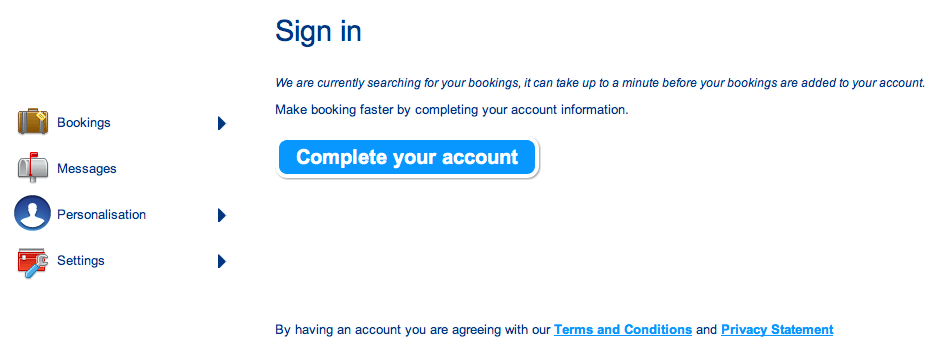
Sign In Screenshot
At first glance, this page doesn’t seem all that bad. There are some nice icons, a header, and a big call to action button. But wait…
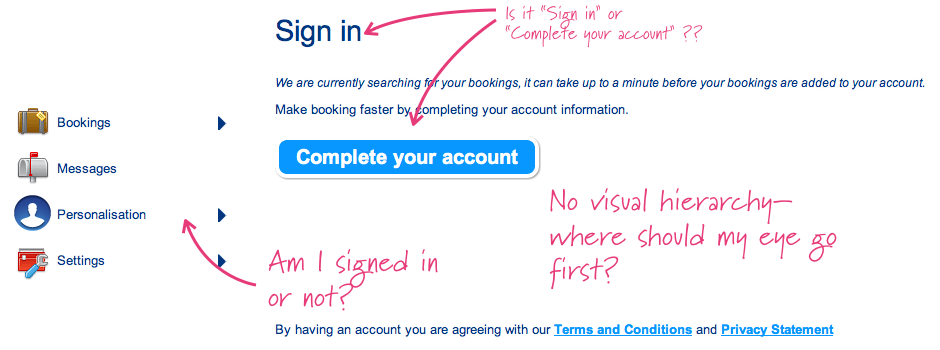
Why am I here? What is expected of me? Am I here to sign in, or complete my account? And if I’m not signed in, why do I have the option to change settings or view my bookings? And what about that first line, “We are currently searching for…”
Sign In Screenshot marked up
As it turns out, the “Complete your account” button takes the user to a “sign in” page with the familiar username/password combo. Given this was the case, that sidebar information is pretty irrelevant (why show me what I can’t access?!). And that “We are currently searching for bookings…” line is just a distraction—kind of like the person talking at you while you’re trying to fill out a paper form. You can imagine the conversational trainwreck this page would be! There’s a lot of shouting going on, and no clear question being asked.
So how should we redesign this page to address these issues? Well, a simple login screen, with a welcoming message (since this is the first time for someone to visit this page) would probably suffice.
Designing for Micromoments
I’m rather fond of the dating analogy—a good experience is a seductive one. Think of the conversation that happens between two people on a first date. Think of how carefully words are chosen, or how a good conversation is about more than the words. Timing and phrasing are critical—one slip of the tongue or an awkward moment and everything can unravel!
What if we applied this same level of care to the interactions we script when we design a screen? How much better might the resulting digital experience be?
In the same way that we already design for activities, tasks, screens, and states, I’d like to propose a finer level of granularity for our designs: micromoments. A micromoment is the word I use to describe each discrete moment in the interaction when a person might pause, advance, or stop—whether filling out an online form or engaged in conversation. Bill Scott talks about the 96 “interesting moments” associated with a simple drag-and-drop feature. Joshua Porter has written about using microcopy to make confusing forms much clearer. Alan Cooper wrote many years ago about polite software.
Selection-dependent inputs, inline contextual actions, primary and secondary navigation, and other kinds of progressive disclosure (or prioritization)… these are all fairly common practices now. Numerous studies have shown how a simple button label change can make a huge difference to click through and conversation rates. Nothing I’m describing here is novel or new—so, why is this still a struggle for many of the designs we encounter?
Magicians must attend to every detail, or else the illusion they work to create will fail. In a similar way, filmmakers, lawyers, politicians, and other professions attend to every detail, lest their efforts fall apart. How can we ground our work as designers in a way that we don’t lose sight of the critical, nuanced details? For me, thinking of interactions as conversations has proven to be a great metaphor.
Interaction design is a conversation between a human (you!) and the system. This is true whether you are conversing with an online catalogue, or with other people via technology. Why not treat our interactions as proper conversations? Rehearse them the way you would rehearse a theatrical production—get up out of your seat, get others out of their seats, and step through every little detail. You’ll be surprised by what you discover.
And that is my Christmas gift to you—the single best exercise I know of for crafting a better user experience.
Enjoy!

Stephen P. AndersonAbout the Author

Stephen is the man behind Mental Notes card deck—a tool that’s widely used by product teams to apply psychology to interaction design. He also authored Seductive Interaction Design, which answers the question: “How do we get people to fall in love with our applications?’
When he’s not directing experience design at an education startup, he’s consulting and leading workshops to help organizations manage creative teams, create interactive visualizations, and design better customer experiences.

Share Your Thoughts with Us

What micro-moments have your experiences that added to — or diminished — your experience with a design? Lets us know on our blog.

Creating a Successful Information Experience for Your Users


In a world where people of all ages and backgrounds are spending increasingly more and more of their time navigating through software and web and mobile apps, providing an experience that engages and guides users is crucial for the success of the application.
While development teams spend countless hoursdesigning the user experience, planning and coding features, and testing the application, they often overlook the importance of the information appearing within the application.
While this information is referred to, in its simplest form, as the user interface text, the integration between the user experience, the features and workflows comprising the application, and the text is what forms the “information experience.” A good information experience pulls all the components of the application together so that users can successfully and confidently move through an application. By providing the right information, you can improve the overall usability of your application, which in turn improves the satisfaction of your customers.
The good news is that most applications are already set up for integrating information. With planning and creativity, you can create a successful, positive information experience for your users.

Types of Information

Each content type in your application has a very specific role in the information experience and with planning and proper design you can maximize their effectiveness.
For example, landing pages and getting started pages help users understand the available features and select the options that best suit their needs, so your users can quickly understand what they need to do to get started and begin working.
In the example below, the layout of the page and the text embedded within it provides an overview of the process and lets users know where they are in that process, helping them complete the task and move onto the next step. By adding simple instructional text and examples of user input, users easily understand the interaction and their chances for success are greatly improved.
Guided tours and embedded instruction in the form of splash pages, callouts, or inline text help users get users get through a specific task or workflow. In the example below, you can see how embedding instruction takes away the guesswork by showing the user exactly where to click to get started.
Beyond that, by combining graphics with the right content, you can also introduce the underlying concepts and terms within the application.
While each label, text string, messages, and block of text in your user interface contributes to the overall information experience, where you place your text, the integration method you use, the amount of text you provide at each step in a process, and the lengths you go to to make sure and provide the right information at the right time all contribute significantly to a successful experience.

Five simple rules for creating an information experience

Rule 1: Understand your users
The type and amount of information a user needs depends on who they are and what they are trying to do. Unfortunately, and far too often, the development team—including the team member responsible for designing and crafting the user interface text—is unaware of a typical user’s needs and abilities, instead relying on assumption and generalizations.
And while there are some generalizations that may be helpful (e.g., network administrators tend to want “under the hood” information, while users of consumer products are not interested in how the application works), relying on generalizations is not a substitute for understanding typical user needs, scenarios, and abilities.
Creating personas is a popular method for learning about the characteristics of your main users and understanding their information needs. By identifying a few main or typical users and mapping their information needs to tasks and workflows, you can concentrate on creating the right information strategy andcontent for real users. Giving your personas a name and referring to them often while defining the content will help you stay focused on their actual needs.
Rule 2: Create a process for integrating the information
Just as developers have coding guidelines and processes, using a simple, systematic process for developing and implementing information into the application will help get the text integrated as part of the feature, instead of tacked on afterwards.
As you can see in the graphic below, your process may consist of few simple steps, but by implementing the information into a feature as part of a process, you’ll have time to review it in context and make improvements while there is still time in the development cycle.
Rule 3: Create content guidelines
Guidelines help ensure that the information experience is consistent throughout the application, improving the user’s ability to scan, read, and understand the information you provide.
Your guidelines should include samples and recommendations for:
  • Writing tone and language, including samples of common text strings
  • Typography used for different types of content, including font, color, and size
  • Terminology used for terms specific to your application and for industry standard terms
  • Content guidelines describing how each content type is written (e.g., callouts, popup messages, instructional text strings, input examples, etc.)
After creating the guidelines, be sure to make them available to the team so they can begin using them right away. And, if you make changes to the guidelines, be sure to let everyone know, including the QA team.
Rule 4: Map your content to user tasks
While the development team is focusing on designing, coding, and testing features, the information experience designer needs to focus on creating content based on tasks. It will be easier to provide the right content if you ask yourself these questions as you begin to design and create information for an entire workflow and for each single task:
  • What is the user trying to do?
  • What does the user need to know?
  • How can I best provide the information?
And while some concepts require more explanations than others, remember that users scan text, so look for ways to provide the information they need without overloading the page. In the example below, you can see that by combining information and visuals you can create an effective message with very little text.
In the example below, the opposite is true: more text is definitely not better. Most of the information describes the feature, but is irrelevant for helping users understand which options to select.
Step 5: Evaluate the experience
Even the best planned and well-written text may not provide the right message, or may be confusing to someone looking at it for the first time. For this reason it’s important to review and evaluate the information experience as part of the overall user experience. Evaluations can be done informally with members of your team or with anyone who may be able to provide thoughtful feedback. Or, you can have a formal evaluation in the form of a usability study providing feedback from sample users.
Whatever method you choose to evaluate the information experience, the evaluation should improve the information experience by helping you:
  • Validate the logic of the information flow as users move between tasks
  • Identify information gaps (i.e., missing information)
  • Identify and fix confusing or extraneous information
  • Verify your information is written according to the guidelines you created

Conclusion

Creating the information experience and integrating it into the user experience requires planning and an understanding of your users. It also requires you to think about information needs in terms of user tasks and workflows.
By working together with your team, you can define the information strategy and create a successful information experience that helps users over the learning curve and through the various phases of their interaction with your product. A successful information experience improves the overall user experience and usability of your application, which leads to happy and loyal customers.
For more on information experience from Linda Newman Lior, check out her book, Writing for Interaction: Crafting the Information Experience for Web and Software Apps available from Morgan Kaufmann